 Scan to install
SafeMyPhone on Google Play
Scan to install
SafeMyPhone on Google Play
Prepare
Create the owner account, add a recovery email and store the private key safely.
 SafeMyPhone
Owner-controlled Android protection
SafeMyPhone helps you prepare before a phone goes missing. You choose the protections, review every permission, and keep recovery access tied to your private key.
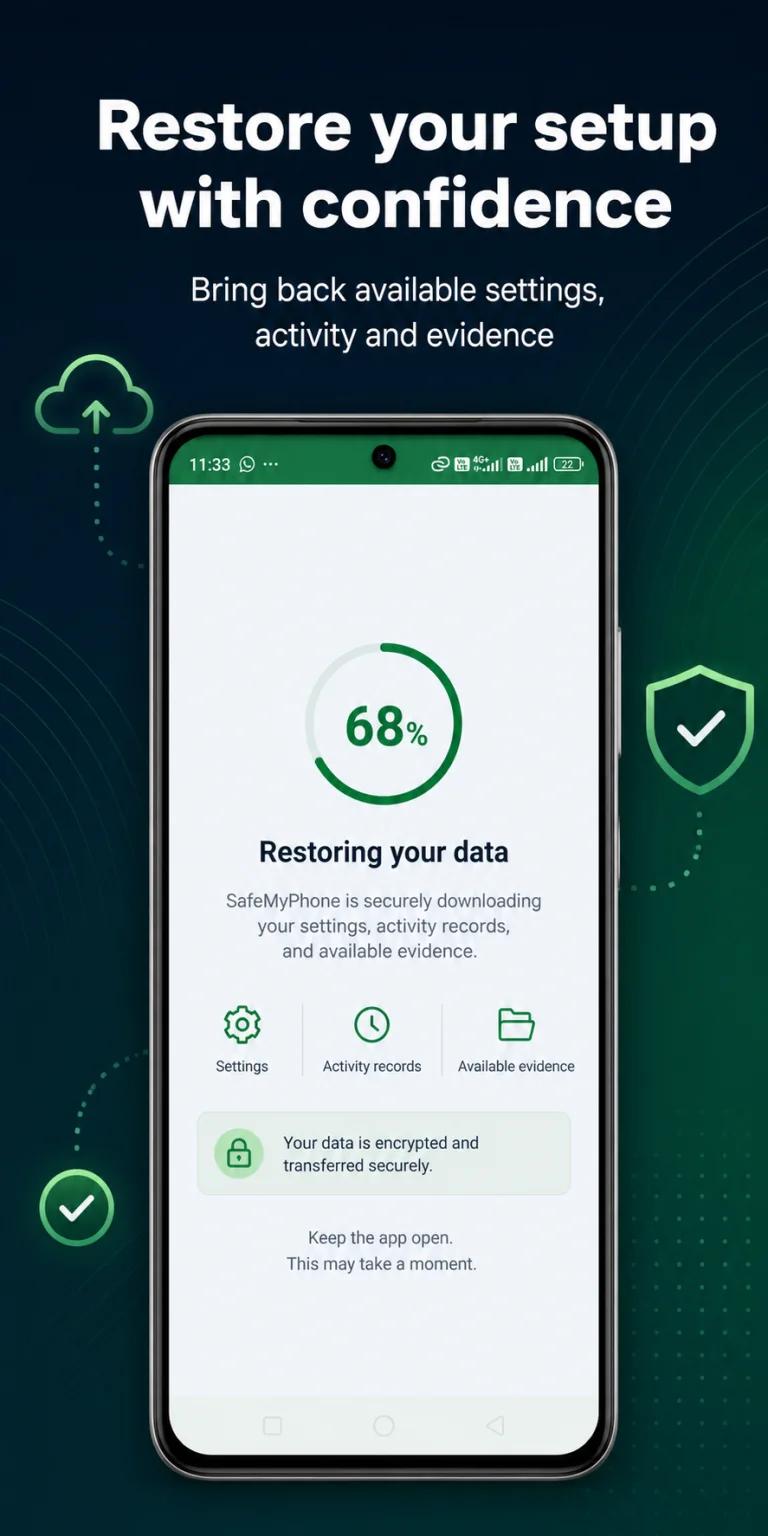
The complete flow
Android restrictions differ between phones, so SafeMyPhone explains what is needed and uses the evidence available on the device.
Create the owner account, add a recovery email and store the private key safely.
Review access and approve only the Android permissions required by your chosen features.
Enable incorrect-unlock monitoring and the recovery signals supported by your phone.
Available evidence is saved and sent to the owner when a configured trigger occurs.
Review the alert from another device and decide on the safest next action.
About one minute
SafeMyPhone provides context first, then Android displays the official system permission screen. Access can be changed later in Android Settings.
Enter the email that should receive owner alerts. Create and safely store the private recovery key somewhere other than the protected phone.
Read why camera, location, notifications, phone state or other access may be requested. Permission needs depend on enabled features and Android version.
Approve Device Admin only after reviewing Android’s notice. It is used for supported failed-unlock detection and owner-requested device actions.
Turn on the available photo, location, offline-sync and alert controls you want. Optional premium controls remain clearly marked.
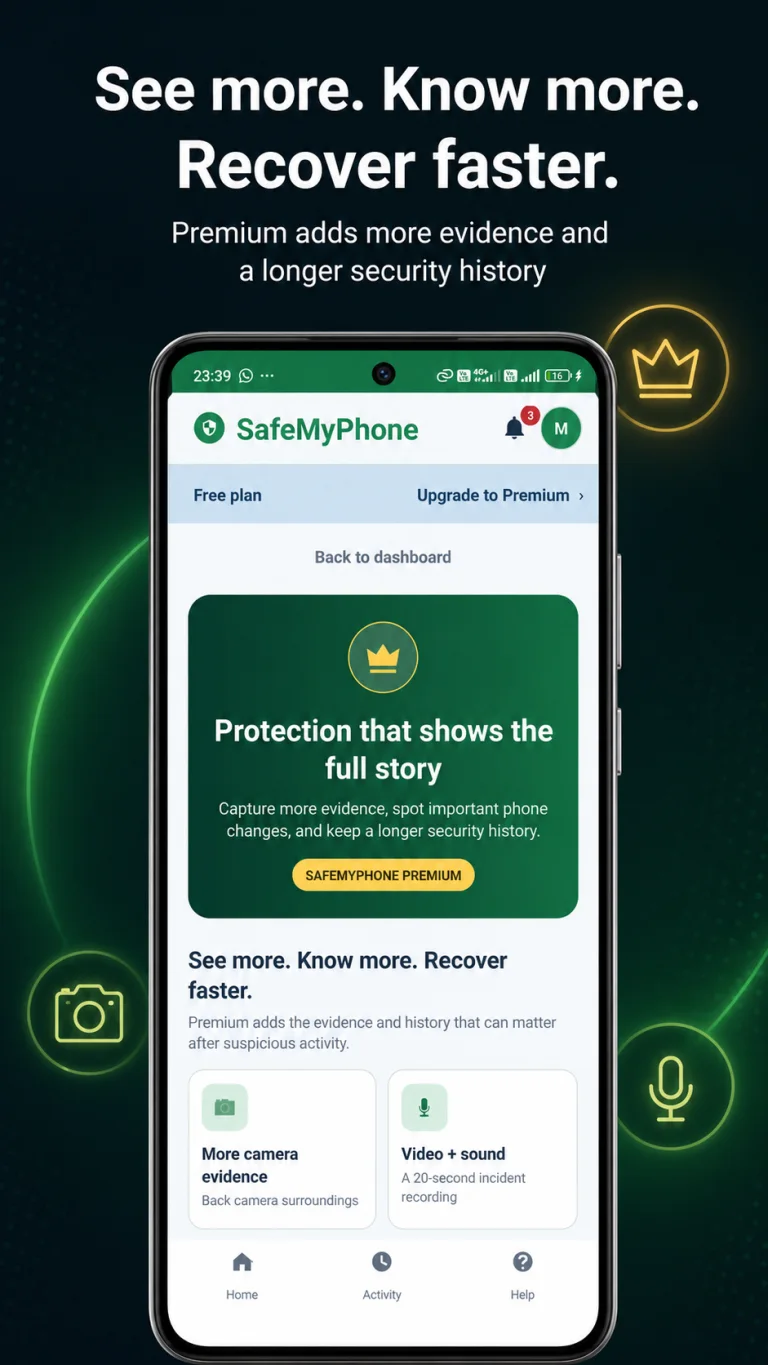
Your protection dashboard
The dashboard separates included protection from optional premium features, so owners can understand the current state without opening multiple menus.
Starts the owner-enabled recovery workflow after supported failed unlock events.
Captures an available image when the required access and protection option are enabled.
Adds coordinates, accuracy and map context when Android can provide a location.
Stores available evidence locally and retries delivery after connectivity returns.
When something happens
An alert shows what happened and when, plus the evidence that was available. It does not guarantee a precise location, identification or recovery.
A supported incorrect unlock, SIM change, network event, restart or other enabled signal begins the relevant workflow.
Depending on permission, plan, device state and enabled controls, this may include a photo, location, timestamp or device details.
Connected phones can deliver details to the configured email and recovery service. Offline records wait for a later sync attempt.
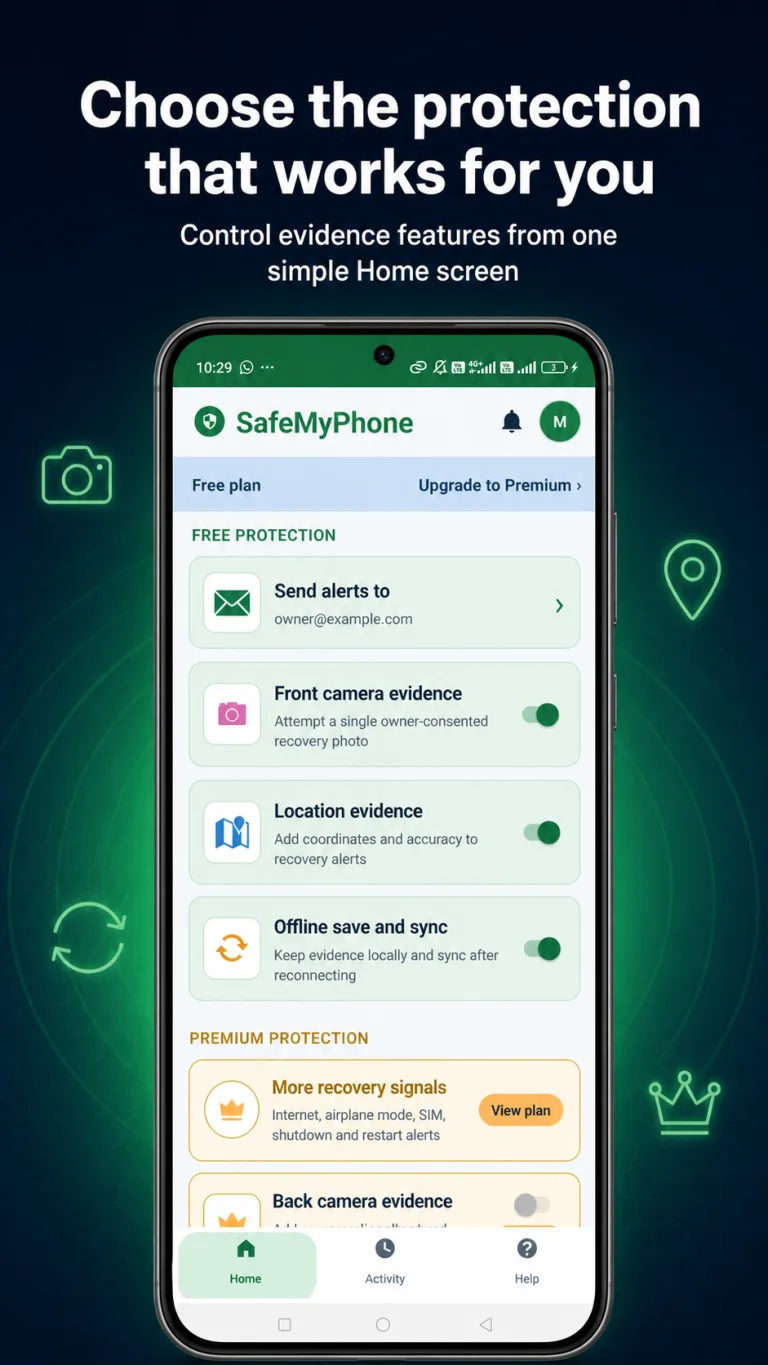
Private owner recovery
Open SafeMyPhone from a trusted phone or computer, enter the private key and complete owner verification before sensitive recovery information is displayed.
Open the recovery page from a phone, tablet or computer.
Match the protected phone without exposing public recovery data.
Check the latest status, time, location and captured media when present.
Important limitations
Results can vary by manufacturer, Android version, battery policy and granted permissions.
An offline phone cannot immediately deliver evidence, although enabled offline sync can retry later.
Never confront someone based on an alert. Use official tracking, your carrier and local authorities when appropriate.
Common questions
These answers reflect the owner-controlled workflow and Android limitations.
No. The app explains the purpose first, and Android requires the owner to approve permissions and Device Admin access on system screens.
If monitoring and the relevant permissions are active, SafeMyPhone can create an alert and collect the photo, location, time or device details available at that moment.
When offline save and sync is enabled, available evidence can be stored on the phone and retried after an internet connection returns.
No. Android version, manufacturer restrictions, device state, permissions and enabled plan features can change what is available.
No. SafeMyPhone is an additional recovery-evidence layer. Owners should also keep Google Find My Device and normal account security enabled.
Complete setup, keep the private key safe and periodically confirm that Android permissions remain active.